 Some things like MPD just get better with age.
How To Set MPD Up As a Single-User Player
How I did it in Linux Mint 22.3 'Zena'
These are the steps I took (and choices I made) to get MPD up and running for my user in Linux Mint Zena.
Wondering WHY? I'll answer that here.
Step 1: Install MPD:
$ sudo apt install mpd
I wanted to see what that process put where, so I used:
$ sudo find / -iname "*mpd*"
I could see mpd.conf was in the /etc folder as usual. I also noticed a mpd.desktop file, which can be used to create file menu entries. This posed a rabbit-chase moment. A quick DDG, and I found I could use this to do that:
$ sudo desktop-file-install /usr/share/doc/mpd/mpd.desktop
With that rabbit dispatched, I went back to getting MPD configured.
Step 2: Create my user's required folders and files:
I chose to base MPD in the existing .config folder rather than add a new folder to my home folder. I created an mpd folder in the .config folder. Then I copied mpd.conf into that new folder. The new mpd folder is where all of the configurable necessary files will live.
$ cd .config
$ mkdir mpd
$ cd mpd
$ sudo cp /etc/mpd.conf .
$ sudo chown greg:greg mpd.conf
$ mkdir Playlists
$ touch tag_cache
Step 3: Edit the mpd.conf file:
$ nano mpd.conf
Once in this file, one can feel overwhelmed. There are a ton of options that can be configured here. Fortunately, only a few are required to get MPD up and running the way I want to use it.
Here is an edited version showing all the mpd.conf entries I have uncommented in my mpd.conf file.
    # An example configuration file for MPD.
    # Read the user manual for documentation: http://www.musicpd.org/doc/user/
    # or /usr/share/doc/mpd/html/user.html
    #
    # Files and directories #######################################################
    #
    music_directory                 "/home/greg/Music/"
    playlist_directory              "/home/greg/.config/mpd/Playlists"
    db_file                         "/home/greg/.config/mpd/tag_cache"
    log_file                        "/home/greg/.config/mpd/mpd.log"
    pid_file                        "/home/greg/.config/mpd/pid"
    state_file                      "/home/greg/.config/mpd/state"
    sticker_file                    "/home/greg/.config/mpd/sticker.sql"
    #
    # General music daemon options ################################################
    #
    bind_to_address                 "localhost"
    #
    # Input #######################################################################
    #
    input {
            plugin "curl"
    }

    # Decoder #####################################################################
    #
    decoder {
            plugin                  "hybrid_dsd"
            enabled                 "no"
    }
    decoder {
            plugin        "wildmidi"
            enabled       "no"
    }
    #
    # Audio Output ################################################################
    #
    audio_output {
        type "pipewire"
        name "PipeWire Output"
    }
    #
    filesystem_charset              "UTF-8"
    #
I am only accessing this particular MPD server from this same machine, therefore localhost works as a bind_to_address. Pipewire actually makes interfacing with the audio hardware painless. I had to create the audio_output{} entry, but as you can see, it's very simple.
I wanted to see a log at first, so I enabled it. When I no longer feel I need it, I'll comment-out that line.
Step 4: The mpd.desktop file continued:
Click the menu button in the lower-left corner of the Cinnamon desktop. I used the Search feature to find the MPD launcher. I found it in the Other group. Right-click on the launcher and select Properties. You can now make the edit you need. My "Command" entry is: mpd /home/greg/.config/mpd/mpd.conf. Yours will be similar, just with a different user name.
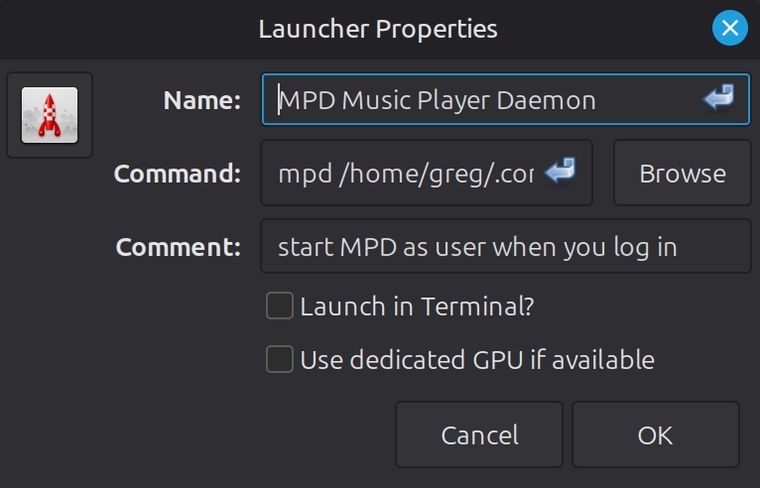 Edit the "Command" entry to point mpd to your config file.
Click OK after making your edit. I want to move the launcher from "Other" to "Sound & Video". To do that, right-click on the menu button and choose "Edit menu". In the dialog that pops up, I see three columns: 'Applications', 'Show Item', and buttons starting with 'New Menu'.
Find the MPD launcher by entering the "Other" group in the 'Applications' column. Then I right-clicked on the MPD launcher, selected "Cut". Next I entered the 'Sound & Video' group in the 'Applications' column and pasted the launcher there. If it's not 'checked', check the box.
To run MPD every time I log in, I clicked the Menu button, typed "startup" and the Startup Applications launcher was shown. There I was able to click the +, select "Choose Application", locate the MPD launcher and add it in.
--==<< POST-PUB UPDATE >>==--
I discovered something I had not anticipated. Because I sometimes would only log out, not shut down, when I logged back in, I started a second instance of the snapclient process. The two instances would float in and out of phase like a guitar pedal effect. I toggled the switch in the Startup Applications dialog to stop automatically starting it in the future. I'll be looking into ways to check for a running service before creating the new one. Later.
Why? Well, let me tell you.
Why is a valid question. Actually, "why" can apply to more than one thing. Why MPD? Why a single-user server? Why not just use a 'normal' music player?
There are a million music players out there. I've tried most of them. Yet I always come back to use an MPD server and some client. And these days, even the client is pretty-much decided.
I like that MPD:
- Is always ready.
- Keeps my playlists all tidy in one place.
- Plays with no client running. Less resources.
- Allows control of multiple servers from one or multiple clients at will.
- When combined with Snapcast, provides the best free multi-room synchronized music platform available.
For control of the multiple MPD servers in my life, I wrote MMC4W. I still like it better than any MPD client I've ever used. I like it better than just about any music player since the iPod. It's a powerful-yet-simple way to do what I want with my music library.
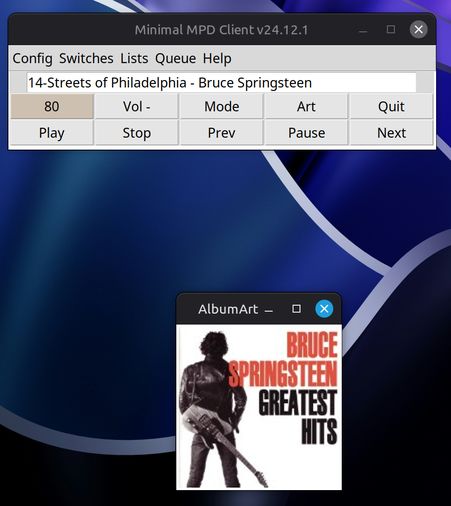 MMC4W in Linux Mint.
The single-user server setup is useful to me when Forrest (this laptop) and I are away from home. Sometimes even when I am at home I want to listen to some of my music privately, just on this one device. Or say the router is down, no network. This works then. When I'm home I can choose to tell MMC4W to control the MPD server on Eyes, which is the main server that outputs to Snapcast and can be listened to in all three buildings here simultaneously.
That's why. I get my music, my way, when I want it. I just don't see how it could be better than that.
MPD certainly is a thing that works. So is MMC4W, and Snapcast, and uncomplicated music, with or without a network or a cloud.
Just the way I like it.