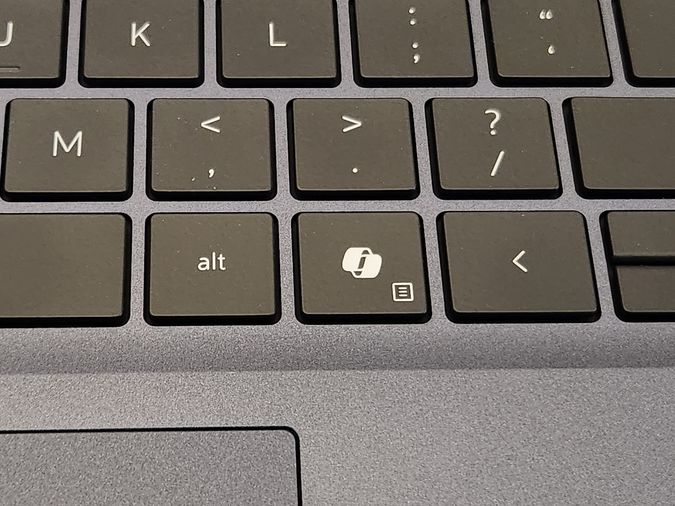
 Microsoft overstepped the bounds here. This cannot stand.
There is a Copilot key on my brand new Dell laptop. This will not do.
When confronted with unwanted change, one must compensate. I don't know who those people at Microsoft think they are, but this is my computer, and I will decide what the keys on my keyboard do, thank you very much.
I recently replaced my beloved Renegade (Dell Inspiron 13-7378 laptop) with a newer version of the same thing: a Dell 14 Plus 2-in-1 DB04255 named Forrest. I absolutely love it.
The first thing I did was wipe the SSD and install Linux Mint, so, obviously, there is no purpose for the dedicated Copilot key that Microsoft shoved down my throat without so much as a howdy-do. This article is primarily here in case I need to remember how I did the remapping.
keyd to the rescue
keyd made this so easy I could barely believe it. When you do the obligatory web search for a solution, you come away with a dizzying array of competing options. This is not at all unusual in the Linux world: too many choices. As Dave Matthews put it, it's a typical situation in these typical times.
After digging through the trove of options, I settled on keyd and set about giving it a spin. I usually start with my platform's package manager, but keyd wasn't there. So I dropped over to Github to see what the deal was.
The developer has done a great job with the documentation, and it didn't take me long to get a sense that it might not be very difficult to get this up and running on my Linux Mint system.
Here are the steps I took:
First, I made sure I was in my home folder. That's where I chose to have a new keyd folder/subdirectory/directory created. Then I dropped these lines in a terminal window, one at a time.
git clone https://github.com/rvaiya/keyd
cd keyd
make && sudo make install
sudo systemctl enable --now keyd
Then I created my configuration file:
sudo nano /etc/keyd/default.conf
In preparation for the configuration data I was about to discover, I put:
[ids]
*
[main]
. . . then I saved that and went to find out what entry I needed for my situation.
Keyd has a built-in function that helps you find out what you need to know. I typed:
sudo keyd monitor
Then I pressed the Copilot key. I was presented with this info:
keyd virtual keyboard   0fac:0ade:bea394c0  leftmeta down
keyd virtual keyboard   0fac:0ade:bea394c0  leftshift down
keyd virtual keyboard   0fac:0ade:bea394c0  f23 down
keyd virtual keyboard   0fac:0ade:bea394c0  f23 up
keyd virtual keyboard   0fac:0ade:bea394c0  leftshift up
keyd virtual keyboard   0fac:0ade:bea394c0  leftmeta up
Armed with this information, and based on several examples of other key remappings, I added another line to my /etc/keyd/default.conf file.
[ids]
*
[main]
leftshift+leftmeta+f23 = rightcontrol
. . . then I restarted the keyd daemon:
sudo systemctl restart keyd
And it works! It was really simple, and very satisfying. A huge thank you to rvaiya, the developer of keyd.
Keyd and the remapped key is are things that work.
Microsoft has earned another bullet on my "Most-Hated Entities" list.
Free Open Source Software continues to make me very happy.